Guide
Choosing a Yealink setup for your conference room
How to match a Yealink video setup to the room: room size, Teams Rooms vs Zoom Rooms vs bring your own device, cameras, microphones, displays and testing.
· 3 min read
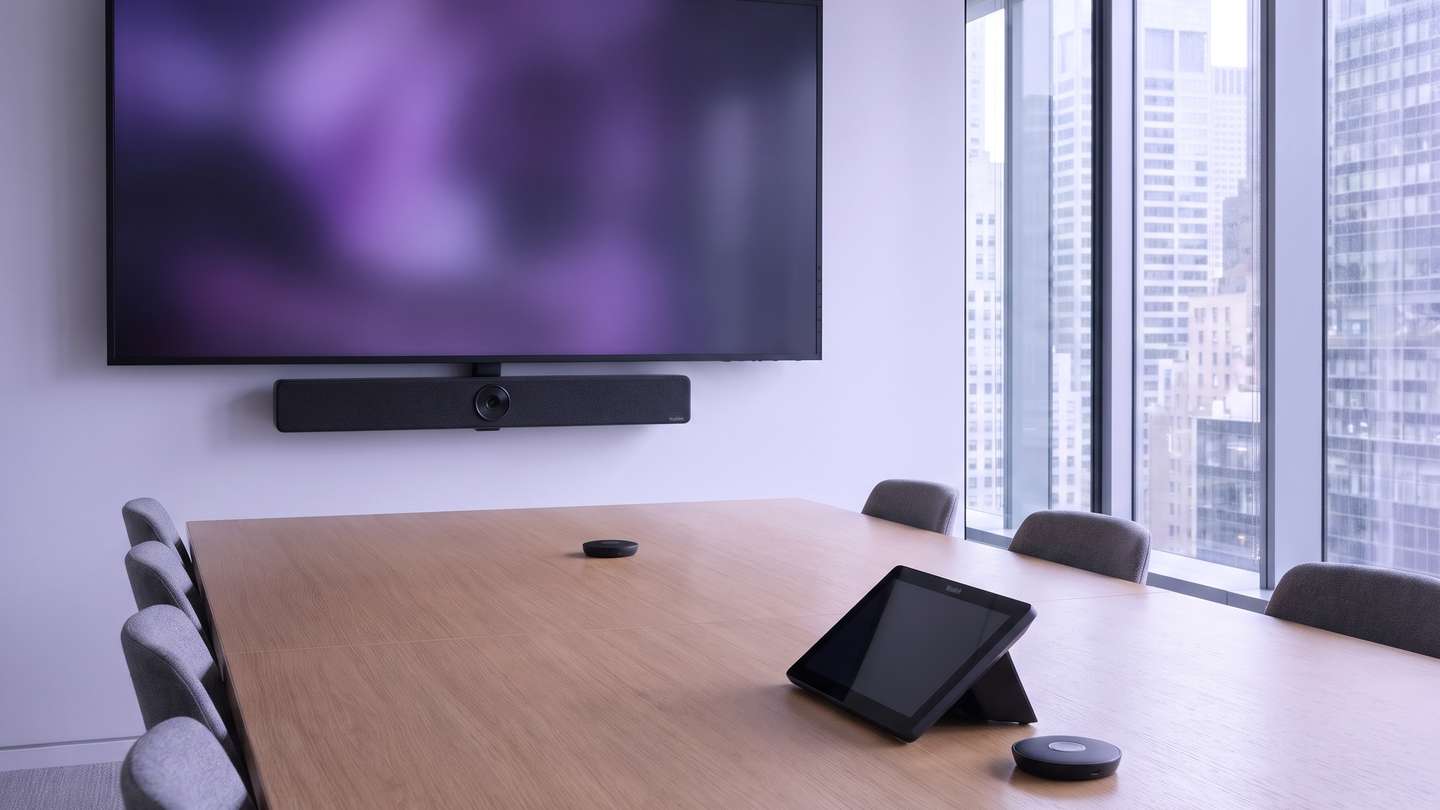
In short: the right setup depends on the room first and the brand second. Decide which meeting platform the room will use, measure the room, and match the camera, microphones, speakers and displays to it. Then test every seat before anyone books the room.
Step 1: decide how people will join meetings
There are three common ways to run a meeting room, and they need different equipment:
- A dedicated Microsoft Teams Room. The room has its own system that signs in to Teams. People walk in and join with one touch on the table console. Microsoft describes Teams Rooms as a complete meeting experience with HD video, audio and content sharing, available on Windows and Android from several hardware partners.
- A dedicated Zoom Room. The same idea for Zoom, with Zoom’s own supported hardware, controller and software.
- Bring your own device (BYOD). A participant’s laptop runs the meeting app, and the room’s camera, microphones and speakers connect to the laptop.
Yealink’s own guidance warns not to assume that a Teams Rooms kit can simply be reused as a native Zoom Rooms system. Choose the platform before ordering hardware. If your company lives in one platform, a dedicated room for it is the simplest experience for staff. If you meet with many outside companies, check how the room joins other platforms as a guest.
Step 2: size the room
Microsoft’s planning guide groups rooms by size and seat count: focus rooms for two to four people, small rooms for four to six, medium rooms for six to twelve, and large rooms for twelve to sixteen. Size drives almost every other choice.
- Small and medium rooms: an all-in-one video bar, which combines camera, microphones and speaker in one device under the display, usually covers the room and keeps installation simple. Yealink’s MeetingBar range is built for this.
- Large rooms and boardrooms: expect separate cameras, microphones spread along the table or in the ceiling, external speakers and often two displays. More parts means more connection points and more careful setup.
Step 3: look at the room itself
The room shapes the result as much as the equipment does. Microsoft’s guide asks you to check the acoustics and layout, make sure chairs cannot block the camera’s view, and look for echo or noisy air conditioning, and to confirm there is enough power for the screens and the system. In New York offices, look out for:
- Glass walls and bare floors, which bounce sound. Rugs, panels or ceiling treatment help more than a better microphone.
- Windows behind the display, which make people on camera look dark. Blinds help.
- Long, narrow tables, where people at the far end are small on camera and far from the microphone.
Step 4: displays and cabling
Size the display so people at the far end of the table can read shared content. Mount it at a comfortable height, with the camera just above or below. Plan the cabling at the same time: network for the room system, power, and a table connection for laptops if people will present. Running cables through the wall or a floor box is what makes a room look finished.
Step 5: test every seat
Before handover, sit in every chair. Yealink recommends verifying that the camera captures all intended participants and testing microphone pickup at every seating position. Make a test call to someone outside the building, share content, and check what remote participants hear when the air conditioning is running.
What this means for your office
Pick the platform, measure the room, and design the room’s equipment for that space rather than buying a kit by name. Then test it the way people will use it.
We design and install Yealink meeting rooms for New York City offices, from huddle rooms to the boardroom, including the cabling and mounting. See video meeting rooms or book a free survey.
Sources
- Video Conference Room Equipment for Microsoft Teams and Zoom Deployments (Yealink)
- Microsoft Teams Rooms (Microsoft Learn)
- Plan for Microsoft Teams Rooms (Microsoft Learn)
General information, not legal advice. Check the sources for the current rules.